How to Remove a Watermark from Word [4 Practical Methods]
Annoyed by watermarks cluttering your Word docs? Can’t get rid of that stubborn Draft, Confidential, image or custom watermark? Whether you’re cleaning up a work file, prepping a draft to share, or fixing a doc with hidden background watermarks, these easy steps will fix it—no tech skills needed.
In this guide, we’ll show you how to remove watermarks from Word quickly with 4 easy methods, perfect for all types of watermarks—no technical skills required.
1. Remove Watermark in Microsoft Word Using Built-in Delete Function
The built-in delete function in Microsoft Word is the quickest way to remove most common watermarks, such as default text marks like "Draft" or "Confidential," or simple image watermarks added directly through Word’s watermark tool. It won’t work for watermarks in headers/footers or behind text (we cover those next), but it solves 8 out of 10 daily watermark issues in seconds.
Here’s how:
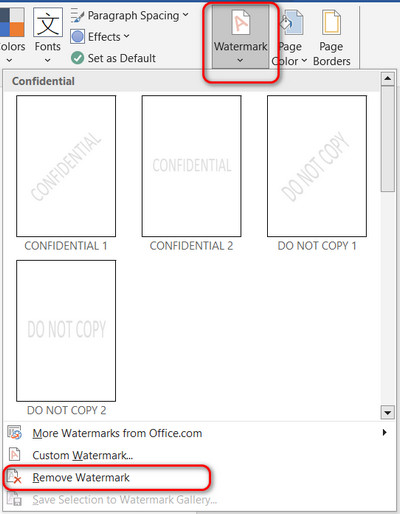
- Open your doc in Word, click the Design tab at the top, then find the Watermark button in the Page Background section.
- Click it and select Remove Watermark—the mark will vanish from the whole doc right away.
- Scroll through to double-check it’s gone, then save your file.
It’s quick, no extra steps, and works for all regular watermarks added directly in Word.
2. Remove Stubborn Watermarks for Header/Footer
If the one-click method fails, your word watermark is stuck in the header/footer —this “stubborn” watermark just needs a quick edit to access.
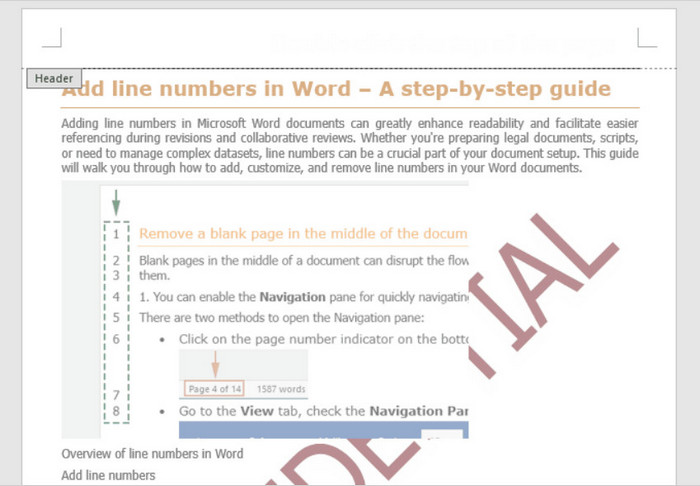
- Double-click the header or footer area (top/bottom page margins) to open edit mode—you’ll see a dashed border, and the watermark will be selectable.
- Click the watermark (text or image) to highlight it, hit the Delete key, then click outside the header/footer to exit edit mode.
- If your doc has multiple sections (different headers for different pages), repeat this for each section’s header/footer.
3. Remove Logo or Image Watermarks in Background
If the watermark is added as a document background image—such as a company logo or a large image watermark—you need to remove the background image to eliminate the watermark.
- Click the Design tab (called Page Layout in some older versions of Word).
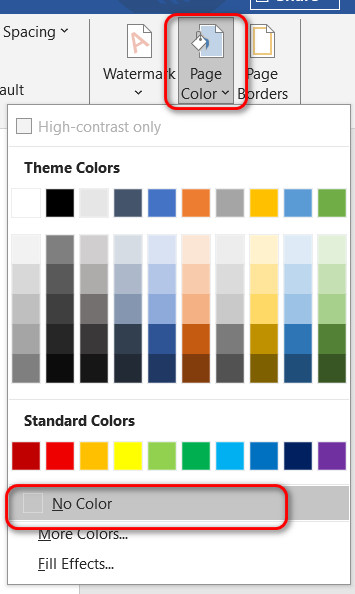
- In the Design tab, find and click Page Color.
- From the dropdown menu, select No Color. Yes, it can clear all images or effects in the background you added via the Fill Effects > Picture tab.
4. Remove Watermarks from Protected Docs & Batch Process Multiple Files
Need to delete a watermark from a locked/protected Word doc, or clear watermarks from a bunch of files at once? These simple hacks work—just back up your docs first to avoid accidental content loss.
Fix 1: Remove Watermark from Protected/Restricted Documents
- Unlock the doc first (enter the password if it’s password-protected to enable editing).
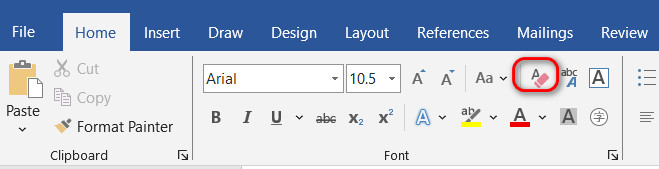
- Go to the Home tab, click the Clear All Formatting button (eraser with an A) in the Font section.
- This resets the doc to Word’s default style, removing the watermark (it might reset some text formatting too—just tweak it back and save).
If this doesn’t work, unlock the doc and use Method 1 or 2 to delete the watermark directly.
Fix 2: Batch Remove Watermarks from Word (For Multiple Files)
- Open your batch tool like Microsoft Power Automate, drag-and-drop all the Word docs with watermarks (most tools support this).
- Select the Remove Watermark option (it might say Batch Watermark Delete) and click Process.
- Save the fixed files to a new folder to keep them separate from the originals.
Enterprise Document Security: Stop Unauthorized Watermark Removal
We’ve shown how easy it is to remove Word watermarks for legitimate work—but this ease is a big risk for businesses: basic Word watermarks are way too easy to delete. Confidential files with flimsy watermarks are wide open to unauthorized sharing, editing, and data leaks.
Your most sensitive docs—client contracts, product roadmaps, financial reports, private customer data—rely on watermarks for traceability, but a Word mark that’s erased in seconds offers zero real protection. That’s where AnySecura Watermark & Document Traceability Solution comes in: a robust business tool that creates unremovable watermarks and tracks every document’s flow, stopping leaks at the source.
AnySecura’s 3-layer watermark protection covers every way your business uses docs:
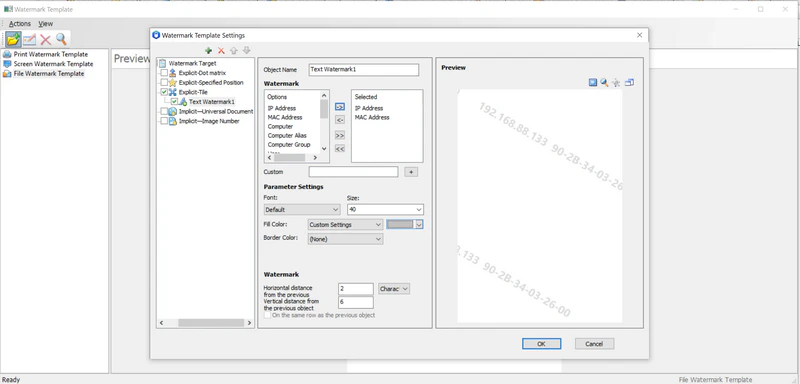
- Screen Watermarks: Dynamic marks (text, QR codes, bitmaps) on employee screens and Office apps (Word, Excel, PowerPoint) with unique IDs (employee ID, IP, device name). They can’t be hidden/cropped from screenshots—leaks get traced to the exact source instantly.
- Print Watermarks: Automatic marks on every printed doc, including hidden bitmap marks embedded in text (invisible to the eye, detectable with AnySecura tools). Stops scanned/photocopied docs from being shared without a trace, and tracks every print job (printer, time, device).
- Document Watermarks: Visible labels (Internal Only, Client Confidential) for clear security cues, plus invisible digital marks in the doc’s code. Invisible marks don’t affect normal editing for your team, but get detected immediately if the file is shared outside your company.
Watermark protection is just the start—AnySecura adds enterprise security features that work with your team’s daily workflow (no extra training, no slowdowns):
- Transparent Document Encryption: Confidential files are encrypted in real time—only authorized users can open them. If copied to a USB, sent via unapproved email or uploaded to third-party cloud, they stay unopenable/unreadable.
- Sensitive Content Identification: Scans docs for client info, financials, trade secrets and blocks unauthorized sharing—sends real-time alerts to admins for potential leaks.
- Document Lifecycle Tracking: Logs every action on a doc (creation, edits, sharing, printing, deletion) for a complete audit trail—no blind spots in how your confidential data moves.
✓ Top-rated
AnySecura DLP Solution
A robust Data Loss Prevention (DLP) solution designed to protect sensitive information for enterprise. It includes advanced monitoring features to detect and prevent data leaks across your network.
- ✓Real-time monitoring of employee activities
- ✓Sensitive data detection and automatic classification
- ✓Comprehensive data access control and restrictions
- ✓Watermarking and traceability for critical documents
FAQs: Removing Word Watermarks
Why can’t I remove the watermark on my Word document?
- It’s hidden in the header/footer—double-click the header to edit, select the mark and hit Delete.
- The doc is protected—unlock it (enter the password) first to edit.
- It’s a background image/shape (not a real watermark)—use the Selection Pane to find and delete it.
- The doc has multiple sections—remove the mark from each section’s header/footer.
- It’s part of a template—copy the content to a blank Word doc to get rid of it.
Can I remove a watermark from just one page in Word?
Yes, but Word doesn’t have a one-click “remove from this page only” button—you’ll use section breaks and unlink headers to isolate the page:
- Place your cursor at the end of the page before the target one, go to Layout > Breaks > Next Page. Do the same at the end of the target page to make it its own section.
- Double-click the target page’s header to edit, then click Link to Previous (under Header & Footer Tools) to turn it off.
- Select the watermark and hit Delete, then click outside the header to exit edit mode.
- If the next pages need the watermark, double-click their header, unlink from the target section, then reapply the mark.
Wrapping Up
Removing Word watermarks is easy once you know the right method:
- Use the one-click Remove Watermark tool for standard marks (fastest fix).
- Edit the header/footer or use the Selection Pane for stubborn/hidden marks.
- Clear formatting (for protected docs) or a batch tool (for multiple files) for advanced jobs.
For personal and everyday office use, these methods fix every watermark problem—but for businesses, protecting your docs is just as important as removing watermarks. Basic Word watermarks are just a visual label, but AnySecura’s end-to-end security solution turns watermarks into a powerful traceability tool, keeping your confidential data safe from unauthorized removal, sharing and leaks.
With the right ways to remove watermarks (for legitimate work) and the right tools to protect your docs (for business security), you can keep your team productive and your data safe—no compromises.